 Facundo Uferer
🔀 Branching, Merging, and Conflict Resolution in Git
When multiple developers work simultaneously on the same codebase, lines of history inevitably diverge. Mastering how to branch, merge, and confidently resolve integration conflicts is an essential skill for any software engineer.
In this lesson, you will learn:
- How to create, switch, and isolate development lines with
git branchandgit switch. - How to merge branches with
git merge(fast-forward vs three-way merge commit). - What causes an integration conflict and why Git halts the merge.
- How to dissect and understand conflict markers (
<<<<<<<,=======,>>>>>>>). - The step-by-step method to resolve conflicts, verify fixes, and complete the merge cleanly.
🌿 MERGING BRANCHES — EXPLAINED STEP BY STEP
🧠 Core Idea (Concept First, Then Commands)
Imagine this scenario:
mainbranch → stable, working version of your projectloginbranch → isolated line of work for a new user authentication feature
👉 Merging (git merge) means:
Integrating the commits from one branch into another branch
Typically, you develop and test in a secondary branch, then switch to main and merge your feature branch into it.
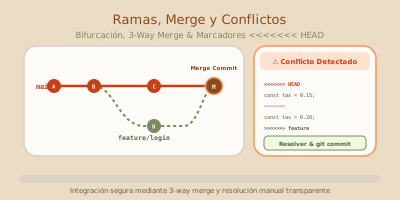
📊 Visual Diagram: Branching and Merging
login branch forks from commit B and advances in parallel to main. If both branches touch the same lines, Git inserts conflict markers before sealing the merge commit F.🧪 REAL STEP-BY-STEP EXAMPLE (Clean Merge)
Step 1️⃣ Create test project
# Initialize a new local Git repository
git init
Create file message.txt:
Hello world# Stage and commit initial baseline on main
git add .
git commit -m "chore: initial commit"Step 2️⃣ Create a new feature branch
# Create secondary branch and switch to it in one command
git checkout -b login
📌 You are now working on the login branch.
Step 3️⃣ Make changes in the new branch
Edit message.txt:
Hello world
Adding login screen
Save:
# Commit the modification to the login branch
git add .
git commit -m "feat: add login screen"
Step 4️⃣ Switch back to main
# Return to the main branch (files revert to main state)
git checkout main
📌 Notice that message.txt in your editor returns to its original single-line content.
Step 5️⃣ Merge the login branch
# Integrate login commits into the current branch (main)
git merge login
🎉 Successful merge without conflicts (Fast-Forward or clean merge).
⚠️ NOW: MERGE CONFLICTS (The Critical Part)
🧠 When do conflicts happen?
A merge conflict occurs when:
- Two branches
- Modify the exact same lines of the same file
- With different content
Git cannot infer human intent automatically 🤯
💥 REAL EXAMPLE OF A CONFLICT
Step 1️⃣ Initial state
File message.txt on main:
Hello worldStep 2️⃣ Branch login changes the line
# Switch to the feature branch
git checkout -b login
Edit message.txt:
Hello world from login# Stage and commit on branch login
git add .
git commit -m "feat: update message in login"Step 3️⃣ Return to main and change the same line
# Switch back to main
git checkout main
Edit message.txt with a different line:
Hello world from main# Stage and commit conflicting line on main
git add .
git commit -m "feat: update message in main"Step 4️⃣ Attempt to merge (BOOM 💥)
# Attempt to merge login into main (Git detects the collision)
git merge login
Git halts execution and reports:
CONFLICT (content): Merge conflict in message.txt
Automatic merge failed; fix conflicts and then commit the result.
🔍 ANATOMY OF A CONFLICT (Inside the File)
Open message.txt in your code editor:
<<<<<<< HEAD
Hello world from main
=======
Hello world from login
>>>>>>> login
What does this mean?
<<<<<<< HEAD→ content present on your current branch (main)=======→ center division marker>>>>>>> login→ content coming from the incoming branch (login)
🛠️ HOW TO RESOLVE A CONFLICT (Step by Step)
Step 1️⃣ Decide what remains
- Option A: Keep your version (
Hello world from main) - Option B: Keep the incoming version (
Hello world from login) - Option C: Combine both into a cohesive result:
Hello world from main and login👉 You make the engineering call.
Step 2️⃣ Delete the conflict markers
⚠️ CRITICAL STEP: You must delete all marker lines:
<<<<<<<
=======
>>>>>>>
Step 3️⃣ Save the clean file
The file must contain only clean, valid code:
Hello world from main and loginStep 4️⃣ Mark the conflict as resolved
# Tell Git that the conflict in this file is resolved
git add message.txt
Step 5️⃣ Create the resolution commit
# Create the merge commit that finalizes conflict resolution
git commit -m "merge: resolve conflict between main and login"
🎉 The merge conflict is now completely resolved.
🔄 COMPLETE MERGE CONFLICT WORKFLOW
# 1. Attempt the branch merge
git merge login

# 2. Git stops and reports CONFLICT (content)
# 3. Open affected files in your editor and resolve markers

# 4. Stage resolved files
git add .

# 5. Commit the merge result
git commit -m "merge: resolve conflict"
🧠 Professional Advice
✔️ Always run git pull before branching or starting work
✔️ Keep commits small and focused
✔️ Use descriptive branch names (feat/login, fix/nav)
✔️ Inspect conflict markers calmly; Git never erases your code silently
❌ Common Mistakes
❌ Deleting entire files by mistake during conflict resolution
❌ Committing files without removing the <<<<<<< and >>>>>>> markers
❌ Panicking and closing your terminal without completing or aborting the merge (git merge --abort)