Facundo Uferer
Undoing changes
Making mistakes is part of the job. What matters is knowing what you want to undo and where that change lives: in the working tree, in the staging area or already in a commit. Each case has its own command.
In this lesson you will learn to:
- Discard the changes in a file with
git restore. - Remove a file from the staging area with
git restore --staged. - Fix the last commit with
git commit --amend. - View a commit with
git showand undo it withgit revert. - Move
HEADback withgit reset --soft,--mixedand--hard. - Recover a “lost” commit with
git reflog. - Visit an old commit with
git switch --detachand bring back a file from the past withgit restore --source.
The example project
The whole lesson is a single example you can run from start to finish. Start with a new repository in a separate folder, as in the previous lesson:
mkdir undo-practice
cd undo-practice
git init
echo "Hello world" > greeting.txt
git add greeting.txt
git commit -m "Add initial greeting"
[main (root-commit) 261c13d] Add initial greeting
1 file changed, 1 insertion(+)
create mode 100644 greeting.txtYour hashes will differ from the ones in this lesson, because they depend on the author and the date. Always use the ones your terminal shows you.
Discarding changes in the working tree: git restore
Suppose you change greeting.txt by mistake:
echo "Text deleted by mistake" > greeting.txt
git status
On branch main
Changes not staged for commit:
(use "git add <file>..." to update what will be committed)
(use "git restore <file>..." to discard changes in working directory)
modified: greeting.txt
no changes added to commit (use "git add" and/or "git commit -a")git status itself suggests the way out. git restore <file> puts the file back as it is in the last commit:
git restore greeting.txt
cat greeting.txtHello worldWarning:
git restore <file>is destructive. Changes you never committed are lost for good: Git never recorded them, so there is no way to get them back. Use it only when you are sure.
git restore only affects files Git already tracks. A new file you never added is left alone.
Removing a file from the staging area: git restore --staged
You saw this in the previous lesson. If you ran git add on something you did not want in the next commit:
echo "Text deleted by mistake" > greeting.txt
git add greeting.txt
git restore --staged greeting.txt
git statusOn branch main
Changes not staged for commit:
(use "git add <file>..." to update what will be committed)
(use "git restore <file>..." to discard changes in working directory)
modified: greeting.txt
no changes added to commit (use "git add" and/or "git commit -a")--staged deletes nothing: the change is still in your working tree. If you also want to discard it, combine both steps:
git restore greeting.txtFixing the last commit: git commit --amend
Changing the message
You make a commit with a typo in the message:
echo "Bye" > farewell.txt
git add farewell.txt
git commit -m "Add farewel"[main 77dde29] Add farewel
1 file changed, 1 insertion(+)
create mode 100644 farewell.txt--amend replaces the last commit with a new one that has the fixed message:
git commit --amend -m "Add farewell"[main f3e279c] Add farewell
Date: Tue Mar 10 10:17:00 2026 +0000
1 file changed, 1 insertion(+)
create mode 100644 farewell.txtAdding a forgotten file
You also forgot to include signature.txt. Add it to the staging area and amend without changing the message, using --no-edit:
echo "Ana" > signature.txt
git add signature.txt
git commit --amend --no-edit
git log --oneline[main 9a6ac3b] Add farewell
Date: Tue Mar 10 10:17:00 2026 +0000
2 files changed, 2 insertions(+)
create mode 100644 farewell.txt
create mode 100644 signature.txt
9a6ac3b Add farewell
261c13d Add initial greetingLook at the hash: it went from 77dde29 to f3e279c and then to 9a6ac3b. --amend does not edit the commit: it creates a new one and drops the previous one from the history.
Rule: use
--amendonly on commits you have not shared with other people yet. If someone already has that commit, your history and theirs no longer match. You will see how work is shared in the Pulling and pushing changes lesson.
Viewing a commit: git show
Now make a change you will later want to undo:
echo "Hola mundo" > greeting.txt
git add greeting.txt
git commit -m "Change greeting to Spanish"
git log --oneline2f55221 Change greeting to Spanish
9a6ac3b Add farewell
261c13d Add initial greetinggit show <hash> shows the commit’s data and exactly what changed:
git show 2f55221commit 2f55221f229527d3f820930bc89ea87291be701d
Author: Ana <ana@example.com>
Date: Tue Mar 10 10:25:00 2026 +0000
Change greeting to Spanish
diff --git a/greeting.txt b/greeting.txt
index 802992c..2d9b695 100644
--- a/greeting.txt
+++ b/greeting.txt
@@ -1 +1 @@
-Hello world
+Hola mundoLines starting with - were removed and lines starting with + were added.
Undoing a commit without rewriting history: git revert
git revert <hash> creates a new commit that applies the opposite change. The original commit stays in the history:
git revert 2f55221Git opens your editor with the message Revert "Change greeting to Spanish". Save and close:
[main 42a3fa7] Revert "Change greeting to Spanish"
Date: Tue Mar 10 10:28:00 2026 +0000
1 file changed, 1 insertion(+), 1 deletion(-)cat greeting.txt
git log --onelineHello world
42a3fa7 Revert "Change greeting to Spanish"
2f55221 Change greeting to Spanish
9a6ac3b Add farewell
261c13d Add initial greetingSince revert only adds a commit, it is the safe way to undo commits you already shared with other people. You can revert any commit, not just the last one.
Moving HEAD back: git reset
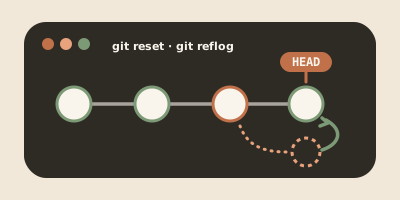
HEAD points to the commit you are on. git reset moves HEAD to another commit, and the commits left “ahead” of it drop out of the history. The option you pick decides what happens to the changes in those commits.
HEAD~1 means “the parent of HEAD”, that is, one commit back.
Create a commit to practice with:
echo "Buy bread" > tasks.txt
git add tasks.txt
git commit -m "Add task list"git reset HEAD~1, HEAD moves back in all three modes. The difference is where the changes of the undone commit end up.| Mode | HEAD | Staging area | Working tree | Use it to |
|---|---|---|---|---|
--soft | Moves back | Keeps the commit’s changes | Unchanged | Redo the commit (for example, combine several into one) |
--mixed | Moves back | Becomes the same as HEAD | Keeps the commit’s changes | Choose again what to add with git add |
--hard | Moves back | Becomes the same as HEAD | Becomes the same as HEAD | Throw away the commit and every uncommitted change |
git reset --soft
git reset --soft HEAD~1
git statusOn branch main
Changes to be committed:
(use "git restore --staged <file>..." to unstage)
new file: tasks.txtThe commit is gone from the history, but its changes are in the staging area, ready for a new commit. Make it again to keep practicing:
git commit -m "Add task list"git reset --mixed
This is the default mode: git reset HEAD~1 does the same.
git reset --mixed HEAD~1
git statusOn branch main
Untracked files:
(use "git add <file>..." to include in what will be committed)
tasks.txt
nothing added to commit but untracked files present (use "git add" to track)The changes are only in the working tree. Since tasks.txt was new, Git shows it as an untracked file. Create the commit again:
git add tasks.txt
git commit -m "Add task list"git reset --hard
git reset --hard HEAD~1
ls
git log --onelineHEAD is now at 42a3fa7 Revert "Change greeting to Spanish"
farewell.txt
greeting.txt
signature.txt
42a3fa7 Revert "Change greeting to Spanish"
2f55221 Change greeting to Spanish
9a6ac3b Add farewell
261c13d Add initial greetingtasks.txt no longer exists. --hard also throws away any uncommitted change in the files Git tracks, and those changes cannot be recovered.
Careful:
resetrewrites history just like--amend. Do not use it on commits you already shared with other people: usegit revertfor those.
Recovering a commit with git reflog
The “Add task list” commit looks lost, but Git keeps a local record of every place HEAD has been:
git reflog42a3fa7 HEAD@{0}: reset: moving to HEAD~1
bdf42a1 HEAD@{1}: commit: Add task list
42a3fa7 HEAD@{2}: reset: moving to HEAD~1
952ade9 HEAD@{3}: commit: Add task list
42a3fa7 HEAD@{4}: reset: moving to HEAD~1
21b77ad HEAD@{5}: commit: Add task list
42a3fa7 HEAD@{6}: revert: Revert "Change greeting to Spanish"
2f55221 HEAD@{7}: commit: Change greeting to Spanish
9a6ac3b HEAD@{8}: commit (amend): Add farewell
f3e279c HEAD@{9}: commit (amend): Add farewell
77dde29 HEAD@{10}: commit: Add farewel
261c13d HEAD@{11}: commit (initial): Add initial greetingEach line is a move, from newest to oldest. The commit you deleted with --hard is bdf42a1. Go back to it:
git reset --hard bdf42a1
lsHEAD is now at bdf42a1 Add task list
farewell.txt
greeting.txt
signature.txt
tasks.txtNow you can say precisely what can and cannot be recovered:
- Anything that was in a commit can almost always be recovered with
git reflog, even if you removed it from the history withresetor--amend. The reflog is local and Git cleans up old entries after a while (90 days by default). - Anything that was never in a commit is lost with
git restore <file>orgit reset --hard. Commit often.
Visiting an old commit: git switch --detach
Sometimes you want to see the project as it was in an earlier commit, without changing anything. git switch --detach <hash> moves HEAD to that commit:
git switch --detach 261c13d
ls
git statusHEAD is now at 261c13d Add initial greeting
greeting.txt
HEAD detached at 261c13d
nothing to commit, working tree cleanYour working tree is now the one from the first commit: only greeting.txt exists. This is called detached HEAD: normally HEAD points to main, and main points to the latest commit. Now HEAD points straight at a commit, outside main.
You can look at files, build or run tests. Avoid committing here: those commits would not be on main and would be easy to lose track of. When you are done, go back:
git switch mainPrevious HEAD position was 261c13d Add initial greeting
Switched to branch 'main'In the Branches, merging and conflicts lesson you will see exactly what main is and how to work with other branches.
Bringing back a file from the past: git restore --source
If you only need one file as it was in another commit, you do not have to move. First, extend the greeting:
echo "How are you?" >> greeting.txt
git add greeting.txt
git commit -m "Extend the greeting"You decide you preferred the original greeting. --source=<hash> tells restore which commit to take the file from:
git restore --source=261c13d greeting.txt
cat greeting.txt
git statusHello world
On branch main
Changes not staged for commit:
  (use "git add <file>..." to update what will be committed)
  (use "git restore <file>..." to discard changes in working directory)
	modified:   greeting.txt

no changes added to commit (use "git add" and/or "git commit -a")The file changed only in your working tree. If you are happy with it, save it in a new commit:
git add greeting.txt
git commit -m "Restore the original greeting"
git log --oneline0ecf466 Restore the original greeting
4a1bc87 Extend the greeting
bdf42a1 Add task list
42a3fa7 Revert "Change greeting to Spanish"
2f55221 Change greeting to Spanish
9a6ac3b Add farewell
261c13d Add initial greetingWhich command to use
| I want to undo… | Command | Does it rewrite history? |
|---|---|---|
| Changes in a file I did not stage | git restore <file> | No, but the changes are lost |
| A file I staged by mistake | git restore --staged <file> | No |
| The message or a forgotten file in the last commit | git commit --amend | Yes |
| A commit I already shared | git revert <hash> | No |
| The last commit, keeping its changes staged | git reset --soft HEAD~1 | Yes |
| The last commit, keeping its changes in the working tree | git reset --mixed HEAD~1 | Yes |
| The last commit and all its changes | git reset --hard HEAD~1 | Yes, and uncommitted changes are lost |
| A reset or an amend I should not have done | git reflog, then git reset --hard <hash> | Yes |
| Nothing: I just want to see an old commit | git switch --detach <hash>, then git switch main | No |
| One file, to make it like it was in another commit | git restore --source=<hash> <file> | No |
Practice exercises
Use the undo-practice repository from this lesson or create a new one.
Exercise 1: discard a change
Add the line Test line at the end of farewell.txt. Check what changed with git diff, then discard the change. Confirm that git status says there is nothing to commit.
Show solution
echo "Test line" >> farewell.txt
git diff
git restore farewell.txt
git status
git status should show nothing to commit, working tree clean. The change is gone for good because it was never in a commit.
Exercise 2: fix the last commit
Create contact.txt with your email and commit it with the message Add contat. Then create hours.txt, which also belonged in that commit. End up with a single commit Add contact containing both files.
Show solution
echo "ana@example.com" > contact.txt
git add contact.txt
git commit -m "Add contat"
echo "Monday to Friday" > hours.txt
git add hours.txt
git commit --amend -m "Add contact"
git show --stat HEAD
git show --stat HEAD shows the Add contact commit with contact.txt and hours.txt. This is fine only because you have not shared that commit yet.
Exercise 3: revert an old commit
Imagine you already shared the Add farewell commit with your team, and now farewell.txt and signature.txt must go. Undo it without rewriting history.
Show solution
git log --oneline
git revert <add-farewell-hash>
git log --oneline
ls
A new commit Revert "Add farewell" appears and both files are gone. The original commit stays in the history, so nobody loses anything.
Exercise 4: rescue a deleted commit
Make any commit, delete it with git reset --hard HEAD~1 and recover it.
Show solution
echo "Call Luis" >> tasks.txt
git add tasks.txt
git commit -m "Add pending task"
git reset --hard HEAD~1
git reflog
git reset --hard <add-pending-task-hash>
git log --oneline
In git reflog the commit shows up as commit: Add pending task. After going back with git reset --hard <hash>, git log --oneline shows it again at the tip of the history.
Exercise 5: compare with the past
Without making any commit, look at what greeting.txt was like in the first commit. Then go back to main.
Show solution
git log --oneline
git switch --detach <first-commit-hash>
cat greeting.txt
git status
git switch main
git status shows HEAD detached at <hash> while you are on the old commit. git switch main takes you back to the latest commit. Another option, without moving, is git show <hash>:greeting.txt, which prints the file from that commit.