 Facundo Uferer
🌿 Rebase and Best Practices in Git
So far you have learned how to create branches with git branch, combine them with git merge, and resolve direct merge conflicts. In professional teams and high-performing environments, how you integrate your changes and document your work directly impacts the long-term maintainability of the codebase.
In this lesson, you will learn:
- What
git rebaseis and how its mental model works internally. - When to choose
mergevsrebase(technical tradeoffs and architectural reasoning). - How to resolve conflicts during a rebase step by step.
- The Golden Rule of Rebase (and why breaking it harms your team).
- Professional best practices: atomic commits, Conventional Commits, and disciplined
.gitignoremanagement.
🔄 What is Git Rebase?
The git merge command combines two divergent histories by creating a dedicated merge commit. This preserves exact chronological ordering, but introduces branching curves and crossings in the history graph.
git rebase offers an alternative approach: re-basing your branch. Instead of creating a merge commit, Git takes the commits you created on your feature branch, temporarily “unplugs” them, fast-forwards your branch to the tip of main, and reapplies (replays) your commits one by one onto that new base.
Mental Model (Before and After)
Imagine this scenario: you branched feature off commit B. While you were developing, your teammates pushed commit C to main.
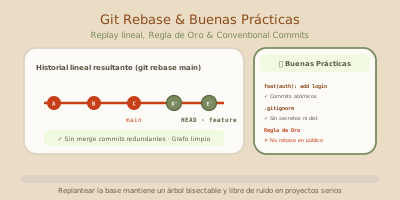
git rebase: feature branch commits are temporarily unplugged and replayed sequentially on top of the latest commit of main, producing a clean, linear history without merge bubbles.Notice the commits are now labeled D' and E': their commit hashes (SHA-1) have changed, because they now have a different parent commit (C instead of B).
The result is a completely linear history, as if you had started writing your feature right after commit C.
⚖️ Merge vs Rebase: Architectural Tradeoffs
Neither command is inherently superior; they address different needs with different priorities:
| Aspect | git merge | git rebase |
|---|---|---|
| History shape | Branching graph with explicit join commits | Clean, single linear line |
| Historical context | Accurately records when branches diverged and merged | Rewrites history to represent sequential progress |
| Conflict resolution | Handled once in the final merge commit | Handled commit-by-commit during the replay |
| Pull Request traceability | Ideal for documenting complete feature merges | Ideal for keeping local feature branches updated |
Practical industry rule of thumb:
- Use
git rebaseto keep your local branch up to date withmainbefore opening or merging a Pull Request. - Use
git merge(or the GitHub pull request merge workflow) to formally integrate an approved feature into a shared branch.
🛠️ Running a Rebase Step by Step
Suppose you are working on branch feature/cart and want to catch up with changes merged into main.
1. Update your local main branch
# 1. Switch to main branch
git switch main

# 2. Fast-forward pull latest remote changes
git pull --ff-only
2. Switch back to your working branch
# Switch back to your active feature branch
git switch feature/cart
3. Rebase onto main
# Replay feature/cart commits on top of the current tip of main
git rebase main
If your changes do not conflict with lines changed on main, Git replays each commit automatically:
Successfully rebased and updated refs/heads/feature/cart.💥 Handling Conflicts During a Rebase
Unlike a merge (where all conflicting changes are resolved at once at the end), a rebase replays commits one by one. If commit D conflicts with changes on main, Git pauses execution at that exact commit.
Step-by-step conflict resolution:
1. Inspect conflicting files
# Check which files have conflicts in the current commit
git status
Git will list conflicting files as both modified.
2. Open the file and resolve the conflict markers
Just like in a traditional merge, you will see standard conflict markers:
<<<<<<< HEAD (incoming changes from main)
const TAX_RATE = 0.21;
=======
const TAX_RATE = 0.18;
>>>>>>> D (your commit currently being replayed)
Edit the file, choose the correct logic, and delete the marker lines (<<<<<<<, =======, >>>>>>>).
3. Stage the resolved file
# Mark the conflict for this step as resolved
git add src/config.js
4. Continue the rebase (Do NOT commit!)
⚠️ Critical detail: During a rebase, do not run git commit. The original commit already exists; you only need to tell Git that the current conflict is resolved so it can continue replaying the remaining commits:
# Instruct Git to continue applying the remaining commits
git rebase --continue
Git will proceed to the next commit. If another commit introduces a conflict, repeat these steps until finished.
Need to abort?
If something went wrong or you want to return to the exact state before starting the rebase, abort cleanly:
# Abort the rebase operation entirely and restore previous branch state
git rebase --abort
🚫 The Golden Rule of Rebase
NEVER rebase public or shared branches.
Apply rebase only to your private local branches that have not been pulled or depended upon by others.
Why?
Rebasing changes commit identifiers. If you rebase a branch that your colleagues have already cloned (such as main or develop) and then force-push with git push --force, you rewrite their history. Their local clones will diverge, resulting in confusing sync errors and potential loss of team work.
🏆 Professional Git Best Practices
Knowing commands is only the foundation. Professional engineering teams demand disciplined workflows:
1. Atomic and Focused Commits
An atomic commit encompasses a single, indivisible logical change.
- ❌ Bad: A single commit that adds a login page, fixes a shopping cart bug, and re-indents 15 stylesheets (
"various fixes and login"). - ✔️ Good: Three separate commits, each with a single responsibility.
Why atomic commits matter:
- They make Pull Requests easy and pleasant to review.
- They allow reverting a broken feature with
git revertwithout losing unrelated fixes. - They make tracking regressions effortless using
git bisect.
2. Conventional Commits (Industry Standard)
Professional organizations follow the Conventional Commits specification for clear, machine-parseable, and human-readable commit messages:
<type>(<optional scope>): <short imperative description>Primary types:
feat:A new user-facing feature.- Example:
feat(auth): add google oauth login
- Example:
fix:A bug fix.- Example:
fix(cart): prevent negative item quantities
- Example:
docs:Documentation-only changes.- Example:
docs(api): update endpoints table
- Example:
refactor:Code changes that neither fix a bug nor add a feature.- Example:
refactor(db): extract query builder helper
- Example:
test:Adding or fixing tests.- Example:
test(auth): add unit test for token validation
- Example:
chore:Maintenance, dependencies, or configuration tasks.- Example:
chore(deps): bump astro to version 6.0
- Example:
3. Strict .gitignore Management
The .gitignore file specifies intentionally untracked files that Git should ignore:
# Package dependencies
node_modules/
vendor/

# Build artifacts
dist/
build/
*.class

# Environment variables and secrets (CRITICAL!)
.env
.env.local
*.pem
*.key

# OS and IDE temporary files
.DS_Store
Thumbs.db
.vscode/
.idea/
🔒 Security Rule:
Never commit passwords, tokens, API keys, or .env files. Removing a secret in a subsequent commit does not purge it from Git history; anyone with access to the repo can inspect previous commits. If a secret is committed, rotate or revoke it immediately.
4. Inspect Before You Commit
Before running git add and git commit, develop the habit of inspecting what changed:
# Check a concise summary of modified and untracked files
git status --short

# Inspect line-by-line differences in the working tree against the last commit
git diff
Avoid blindly running git add . without checking that you are not unintentionally staging temporary logs, test files, or unintended modifications.
📌 Lesson Command Summary
| Action | Command |
|---|---|
Rebase current branch on top of main | git rebase main |
| Resume rebase after resolving conflicts | git rebase --continue |
| Abort rebase and restore previous state | git rebase --abort |
| View short working tree status | git status --short |
| View unstaged modifications | git diff |