 Facundo Uferer
Basic Concepts and Your First Java Program
Welcome to the Java course! Java is one of the most popular, robust, and highly demanded programming languages in the software industry. From high-availability banking systems and massive enterprise backends to Android applications and modern microservices, Java is a cornerstone of modern software engineering.
In this introductory lesson, you will understand the core pillars that make Java so powerful, its internal compilation and execution architecture, the detailed anatomy of an executable class, and how to write your first program.
1. Java Architecture: Write Once, Run Anywhere (WORA)
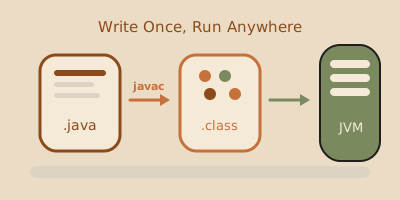
Historically, programs written in languages like C or C++ had to be compiled specifically for each operating system and processor architecture (Windows x86, Linux ARM, macOS Apple Silicon). Java revolutionized the industry by introducing the WORA (Write Once, Run Anywhere) philosophy.
This is achieved by structuring the Java platform into three nested core components:
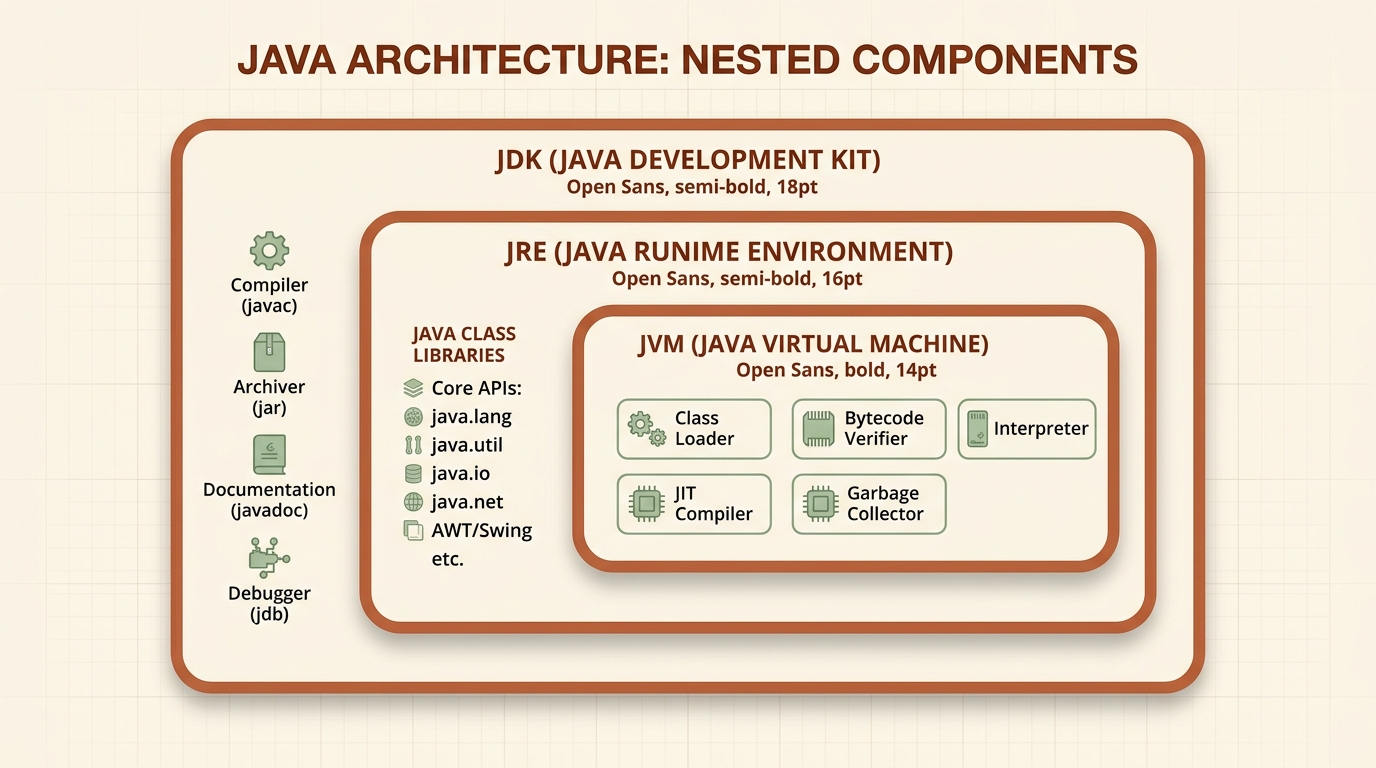
Java Platform Components:
-
JDK (Java Development Kit):
- The complete bundle for developers.
- Contains the compiler (
javac), packaging utilities (jar), documentation generators (javadoc), debugger (jdb), and all tools required to write Java applications.
-
JRE (Java Runtime Environment):
- The environment needed to run Java applications.
- Includes the JVM along with the core standard libraries (
java.lang,java.util,java.io,java.net, etc.).
-
JVM (Java Virtual Machine):
- The operational core of Java—a software-emulated machine that interprets and executes bytecode.
- Contains essential components such as:
- Class Loader: Loads
.classfiles into memory. - Bytecode Verifier: Checks code integrity and security before execution.
- JIT (Just-In-Time) Compiler: Translates frequently executed bytecode fragments directly into native machine code for maximum performance.
- Garbage Collector: Automatically manages memory, freeing objects that are no longer referenced.
- Class Loader: Loads
2. Compilation and Execution Flow
Unlike purely interpreted languages (such as JavaScript or Python) or native compiled languages (such as C++), Java uses a two-phase compilation process:
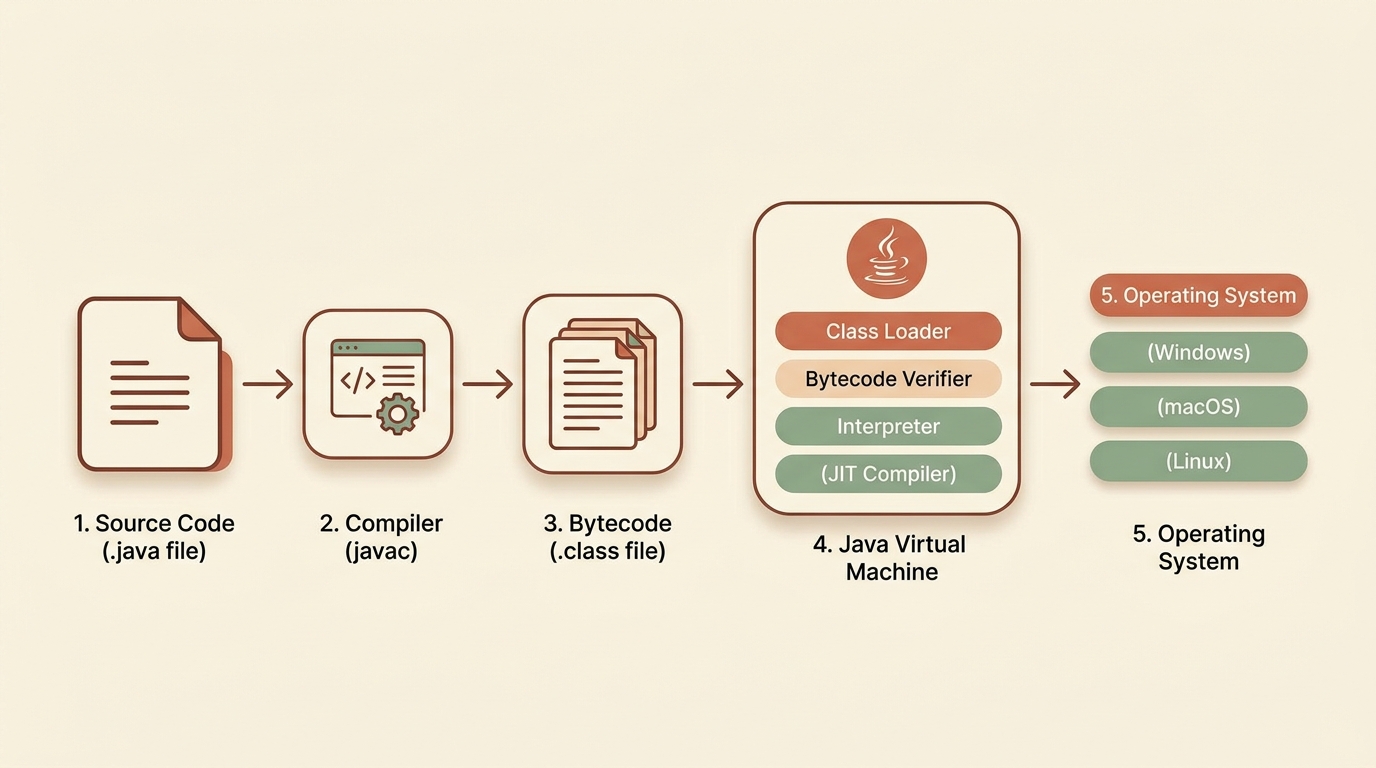
- Source Code (
.java): Human-readable code written in your editor or IDE. - Compiler
javac: Translates source code into a platform-independent intermediate format called Bytecode. - Bytecode (
.class): Compact instruction set designed for the JVM. - Execution on JVM: The JVM installed on the target OS (Windows, macOS, or Linux) reads the bytecode and executes it on the physical processor via interpretation and JIT compilation.
3. Detailed Anatomy of Your First Program
In Java, all code must reside inside a class. There are no standalone functions or global script code outside classes.
Let’s create the classic HolaMundo.java program:
public class HolaMundo {
    public static void main(String[] args) {
        System.out.println("Hello, World from Java!");
    }
}
Word-by-Word Breakdown:
| Keyword / Identifier | Meaning in Java |
|---|---|
public | Access modifier. Indicates that the class or method is accessible from anywhere in the project. |
class | Declares a class—the fundamental building block of Object-Oriented Programming. |
HolaMundo | Class name. Golden rule: The .java filename must match the public class name exactly (HolaMundo.java), including capitalization. |
static | Indicates the method belongs to the class itself rather than a specific object instance. The JVM can invoke it without instantiating the class. |
void | Specifies that the method performs an action but returns no value. |
main | Reserved name for the application entry point. The JVM looks for a method named main to start execution. |
String[] args | Array of text strings that receives command-line arguments passed to the program. |
System.out.println() | Prints a string to the standard output console (out) followed by a new line. |
4. Compilation and Execution from Terminal
Follow the step-by-step workflow in your command prompt or terminal:
Step 1: Create the File
Save the code above in a file named HolaMundo.java.
Step 2: Compile
Run the javac compiler on your source file:
javac HolaMundo.javaIf there are no syntax errors, a binary file named HolaMundo.class will be generated in the same folder.
Step 3: Execute
Run the java virtual machine specifying only the class name (without the .class extension):
java HolaMundoConsole Output:
Hello, World from Java!5. Passing Command-Line Arguments
The String[] args parameter in the main signature allows us to receive input arguments when launching the program from the terminal:
public class SaludoPersonalizado {
    public static void main(String[] args) {
        if (args.length > 0) {
            System.out.println("Hello, " + args[0] + "! Welcome to Java engineering.");
        } else {
            System.out.println("Hello, Anonymous Developer! Pass your name as an argument.");
        }
    }
}
Compilation and Testing:
javac SaludoPersonalizado.java

# Running without arguments:
java SaludoPersonalizado
# Output: Hello, Anonymous Developer! Pass your name as an argument.

# Running with an argument:
java SaludoPersonalizado Facundo
# Output: Hello, Facundo! Welcome to Java engineering.
6. Style Conventions and Quality Guidelines
To write professional and readable Java code, follow standard naming conventions:
- Classes and Interfaces: Use
PascalCase(e.g.HolaMundo,CuentaBancaria,UsuarioService). - Methods and Variables: Use
camelCase(e.g.calculateTotal(),userName,initialBalance). - Constants: Use
UPPER_SNAKE_CASE(e.g.MAX_RETRY_COUNT,PI). - Semicolon
;: Every statement in Java must terminate with;. - Comments:
// Single-line comment

/*
   Multi-line comment
   for longer explanations.
*/

/**
 * Javadoc comment for API documentation generation.
 */
7. Choosing a development environment
You can write Java in a simple editor, but an IDE (integrated development environment) combines editing, compilation, execution, navigation, and debugging. Choose one for the task rather than for the longest feature list.
| Environment | Advantages | Limits and risks | When to choose it |
|---|---|---|---|
| IntelliJ IDEA, Eclipse, or VS Code with extensions | Works offline, integrates with the local JDK, and supports large projects, debugging, and version control. | Requires installation, memory, configuration, and alignment between IDE and JDK versions. | A complete course, real projects, and sustained work. |
| Online IDE in a browser | Starts quickly, requires no installation, and makes a small example easy to share. | May require a connection, limit CPU, memory, files, or Java versions, and store code with a third party. | Short experiments on a temporary computer, never as the project’s only copy. |
Terminal with javac and java | Exposes the real workflow and reduces hidden automation. | Does not provide completion or advanced navigation. | Learning fundamentals and diagnosing IDE problems. |
Checklist before starting
- Run
java --versionandjavac --version. Both tools must exist and report compatible versions. - Configure the project to use that JDK version, not merely the IDE’s default.
- Compile and run once from the terminal. This separates a code error from IDE configuration trouble.
- Keep the project locally and under version control. An online IDE link is not a backup.
- Never paste passwords, tokens, or personal data into online services.
For this course, the safe default is a compatible local LTS JDK, with the terminal as the reference environment. If an online IDE provides a different version or you see UnsupportedClassVersionError, do not change code at random: verify the required version, select a compatible environment, or explicitly compile for the target version.
8. Reading the Java API and Javadoc
The Java API is the contract of the available classes. Javadoc is the navigable documentation format that presents that contract. Reading it prevents guessing method names, parameters, or failures.
Practical reading workflow
- Confirm the version: open documentation for the same JDK version as the project. A later API may contain methods that your compiler does not know.
- Locate the class: search by fully qualified name. For
String, the page identifies modulejava.base, packagejava.lang, and classString. - Read the class summary: check its purpose, inheritance, interfaces, and general notes before choosing a method.
- Find the exact signature: overloads share a name. The signature
substring(int beginIndex, int endIndex)requires two integer indices. - Read every parameter:
beginIndexis inclusive andendIndexis exclusive. Do not infer semantics from names alone. - Read the return value: the method returns a new
String; it does not modify the original. - Read
Throws: the documentation declaresIndexOutOfBoundsExceptionwhen indices are outside the valid range or reversed. - Check deprecation and availability: a
Deprecatedlabel explains the replacement;Sinceidentifies the first supporting version. - Follow each linked type: if a parameter or return type is unfamiliar, open its link and repeat the process. A linked type is part of the contract.
Example: applying the String.substring contract
We want to print at most the first ten characters of an argument. The boundary must respect the actual length so it does not violate the documented precondition:
public class Preview {
    public static void main(String[] args) {
        if (args.length == 0 || args[0].isBlank()) {
            System.err.println("Usage: java Preview <non-empty-text>");
            return;
        }

        String text = args[0];
        int exclusiveEnd = Math.min(10, text.length());
        String preview = text.substring(0, exclusiveEnd);
        System.out.println(preview);
    }
}
The concrete call is String.substring(0, exclusiveEnd). Math.min provides a safe boundary for short strings, while missing or blank input produces an explicit message and exits without an accidental exception. Do not catch IndexOutOfBoundsException and continue with incorrect data: validate conditions under your control first.
When documentation and compiler disagree
- Confirm
java --version,javac --version, and the version selected by the project. - Check the Javadoc page’s version heading and its
Sincesection. - Inspect the full signature: you may have selected another overload or imported a class with the same name.
- Treat
Deprecatedas a migration signal, not as an error to hide. - If the method belongs to a newer version, use the documented alternative for your version or upgrade the JDK deliberately. Do not copy an unsafe implementation to imitate a missing API.
Documentation is the source of the contract; IDE completion is only a navigation aid.
9. Common Beginner Pitfalls
error: class HolaMundo is public, should be declared in a file named HolaMundo.java:- Cause: The filename does not match the
publicclass name exactly (Java is case-sensitive).
- Cause: The filename does not match the
Error: Could not find or load main class HolaMundo:- Cause: You ran
java HolaMundo.classinstead ofjava HolaMundo, or you are not in the correct directory.
- Cause: You ran
java.lang.ArrayIndexOutOfBoundsException:- Cause: You tried accessing
args[0]without checkingargs.length > 0when no arguments were supplied.
- Cause: You tried accessing
10. Hands-on Exercise
Challenge:
Write a Java program named PerfilDesarrollador.java that:
- Checks whether 2 arguments were passed from the console (Name and Favorite Language).
- If arguments are present, prints a formatted message:
Developer: [Name] | Specialty: [Language] - If arguments are missing, prints an explanatory usage message.
View Suggested Solution
public class PerfilDesarrollador {
    public static void main(String[] args) {
        if (args.length >= 2) {
            String name = args[0];
            String language = args[1];
            System.out.println("==========================================");
            System.out.println(" Developer: " + name);
            System.out.println(" Specialty: " + language);
            System.out.println("==========================================");
        } else {
            System.out.println("Usage: java PerfilDesarrollador <YourName> <YourLanguage>");
        }
    }
}